
User Guide
AI DJ Pro — User Guide
A simple guide to running a great set with AI DJ Pro. No technical background needed.
Looking for something simpler?
This is the simple, non-technical guide. For architecture, ports, configuration, and power-user troubleshooting, use the complete technical guide.
What is AI DJ Pro?
AI DJ Pro is a DJ app on your computer. It plays your music, mixes from song to song, and can act like a real host with spoken announcements.
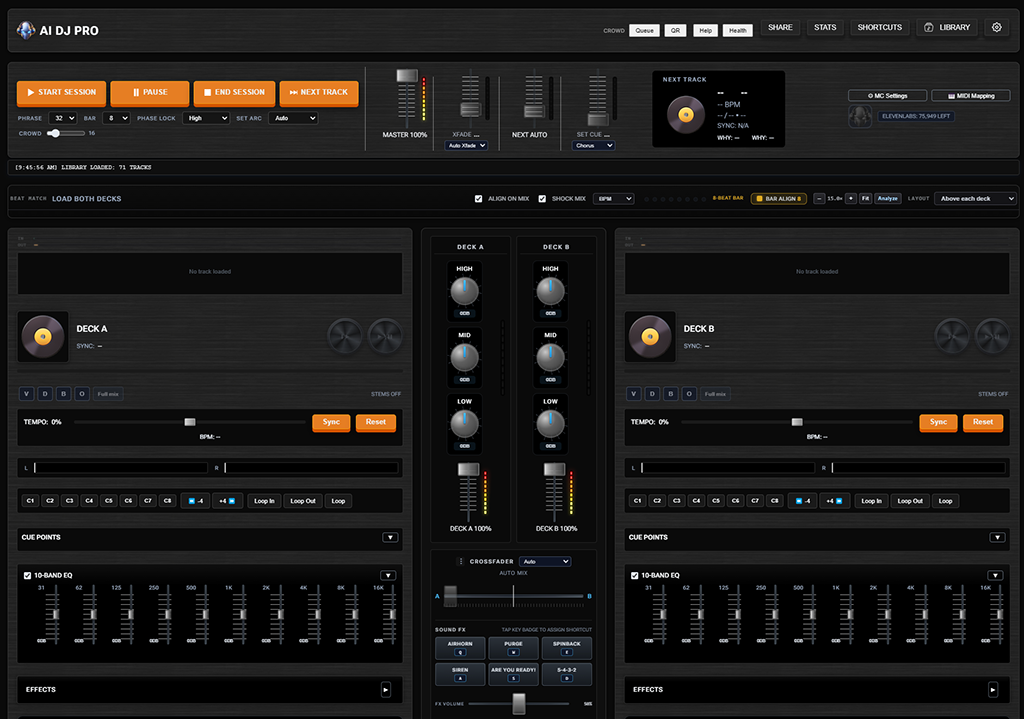
- Your music stays on your PC (local files or YouTube playlists you add).
- The app picks the next song and blends tracks so the energy keeps flowing.
- Optional stem separation lets you mute or solo vocals, drums, bass, and other parts on local tracks.
- A built-in sampler stores custom one-shots and loops (import files or grab chops from a live deck).
- An optional MC (host voice) can welcome guests, hype tracks, and thank everyone at the end.
Power users and troubleshooting — architecture, ports, configuration, and in-depth mixing details.
Complete Technical GuideQuick start — your first party set
- Open the app and wait until it connects (the startup screen should clear).
- Library — add music: point to a folder on your computer, or paste a YouTube playlist link.
- Optional: run Analyze on tracks missing BPM/key info (helps smarter mixing).
- Press Play (the booth arms when connected; Play starts the music).
- Let it run. Use Pause if you need a break; Next Track to skip early; End Session when you're done.
That's enough for a hands-off party. Everything below helps you tune the vibe.
Two ways to DJ
Auto mix (recommended for parties)
- Chooses the next song.
- Fades between tracks on its own.
- Shows which deck is live and next in the library.
You control the session (start, pause, skip, end) and settings (energy, MC, mix feel).
Manual mix (for hands-on DJing)
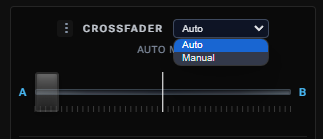
You load songs onto Deck A and Deck B and blend them with the crossfader — like a traditional DJ controller.
- Next Track is off in manual mode.
- Phrase, Bar, Phase lock, Set Cue, Align on mix, and Shock mix apply to auto mixes only — in manual you're in control of the blend.
Switch modes with the Auto / Manual dropdown on the crossfader panel.
Load then Play: In manual mode, load at least one track onto Deck A or Deck B, then press Play. Pressing Play with empty decks shows a reminder. If the booth is not connected yet, wait for the connection, load your decks, then Play. DJ Phone Start syncs the desktop session so Library load / queue works after a remote start.
Crossfader in manual mode: At center, both decks stay at full volume — fading only begins when you move past center toward Deck A (left) or Deck B (right). This gives you a wide both playing zone for overlays and doubles.
Deck effects and filters
Each deck has an Effects panel (expand with ▼ under the EQ) and a separate Filter panel.
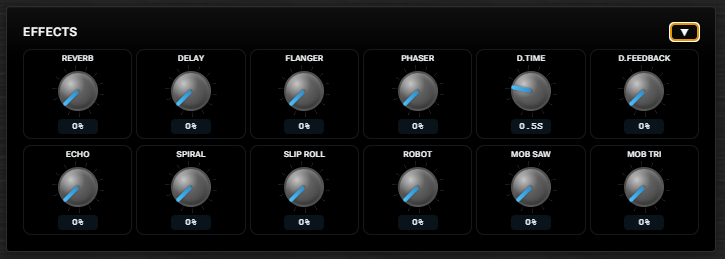
Effect knobs (two rows)
| Row | Knobs |
|---|---|
| 1 | Reverb, Delay, Flanger, Phaser, D.Time, D.Feedback |
| 2 | Echo, Spiral, Slip Roll, Robot, Mob Saw, Mob Tri |
Turn a knob up to add that effect; all effects can run in parallel. Use D.Time and D.Feedback to shape the main delay. Echo uses a BPM-synced stereo ping-pong delay (dotted-eighth to quarter-note range based on the track's BPM). Repeats are filtered so they stay musical rather than harsh.
FX bypass button
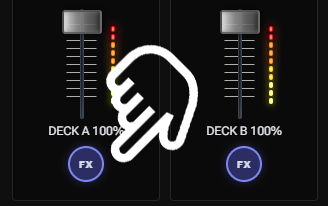
When the Effects panel is open, a round FX button appears under each deck's volume fader. Click it to bypass all effects on that deck without resetting your knob positions — click again to turn effects back on.
Filter panel
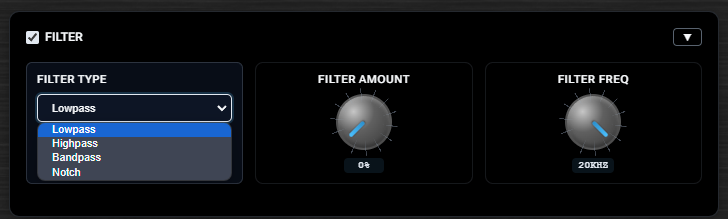
Enable Filter on a deck for low-pass, high-pass, or band-pass sweeps (separate from the effect knobs).
Hot cues
Each deck has 8 hot cue buttons (C1–C8) below the waveform.

- Move the playhead where you want a cue.
- Click an empty pad to set it (or use Shift+1 through Shift+8 on the keyboard).
- Click a lit pad to jump to that cue.
- Shift+click a pad (or hold the deck SHIFT button / keyboard Shift, then press the pad) to clear it.
With Quantize (Q) on, setting a cue snaps to the beat grid; jumping while playing waits for the next beat before the jump (and, when Sync'd, can wait on the other deck's beat). Hot cues are saved per track in the browser.
Quantize (Q)
Each deck's tempo row has a Q button. Quantize is global (one on/off for both decks) and is remembered in the browser.
| When Q is ON | Behavior |
|---|---|
| Set hot cue / Loop In / Loop Out | Snap to the nearest beat (or bar for 4/8 loops) |
| Jump hot cue while playing | Wait for the next beat, then jump to the stored time |
| Arm Loop / 4 / 8 | Forward-snap the loop, then phase-align to the other deck when both are playing and BPM-matched (or seek to loop-in if alone) |
| Q OFF | Raw playhead — no snap / no wait / no phase seek on loop arm |
Memory Cue (manual mix)
In Manual mix, each deck has a Cue button (CDJ-style):
| Action | Result |
|---|---|
| Playing → Cue | Jump to the memory cue and pause |
| Paused away from cue → Cue | Set the memory cue at the playhead |
| Paused on cue → hold Cue | Preview from the memory cue (release returns and pauses) |
| Shift+Cue | Jump to the start of the track (0:00) and pause |
Pitch / tempo faders
Each deck's pitch slider (±8%) has a zero detent: while you drag near the center, it snaps to 0% (original pitch), same idea as the crossfader center snap. Use Reset to animate back to 0%, or Sync / MT as usual.
Loops (per deck)
Next to Loop In / Loop Out / Loop on each deck:
| Control | What it does |
|---|---|
| Loop In / Out | Set markers (with Q on, snap to the beat grid) |
| Loop | Toggle the manual loop; with Q on, re-anchors from the next beat and keeps length |
| 4 | Arm a 4-beat loop from the playhead (bar snap when Q on) |
| 8 | Arm an 8-beat loop from the playhead (bar snap when Q on) |
While an auto-loop is active, click the same button again to exit. Ctrl+click halves the loop length; Shift+click doubles it (up to 64 beats). Needs a known BPM on that deck. With Q on, arming also aligns the deck's playhead/phase so both decks share the white playhead when synced.
The main buttons

| Button | What it does |
|---|---|
| Play | Starts (or resumes) the set. In auto mode the first track plays and mixing runs on its own. In manual mode, plays loaded deck(s). You can also start from DJ Phone — the desktop session stays in sync. |
| Pause | Stops the music but keeps your place — Play / Resume continues the same song. |
| Next Track | Skip to the next song with a smooth blend (auto mode only). Both decks soft-load when the set begins, so Next takes over the idle deck immediately (no wait for a long fade-out or beat-phrase). |
| End Session | Wind down and stop the set. Optional goodbye from the MC. Does not auto-restart the first track — press Play when you want a new set. |
| Library | Browse, search, queue tracks, import YouTube — half/full layout and drag-and-drop onto decks. |
| Backup | Export / restore settings, playlists, license, and optionally sampler audio. |
| MC Settings | Turn the host voice on and describe your event (includes DJ Phone PIN). |
| Settings → Shortcuts | View and rebind keyboard shortcuts (click a key to change it). |
| Help | Opens the online guide at aidjpro.app/guide |
Closing the app window shows an in-app Exit confirm (session stops if you exit).
Shaping the energy of your set
Crowd energy slider
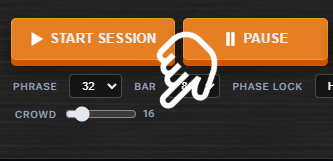
On the second row under Phrase / Bar / Set arc / Mashup (session controls), the Crowd slider is a simple 0–100 control for how hyped the room feels. Higher = the app leans toward faster, punchier picks. Lower = calmer choices.
Set arc
Tells the app what kind of moment you're in:
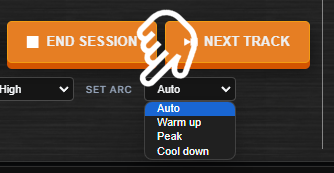
| Setting | Good for |
|---|---|
| Auto | Full night — builds up, peaks, then winds down naturally. Keeps playlist / queue order when you're playing a fixed list. |
| Warm up | Early evening, people arriving — picks lower-BPM zone tracks (overrides strict playlist order) |
| Peak | Dance floor is full — keep energy high (overrides playlist order toward higher BPM) |
| Cool down | Last hour, winding the night (overrides playlist order toward easing BPM) |
Tip: Start with Auto. Switch to Warm up at the beginning or Cool down near the end if you want to steer the mood.
Mashup (Creative)
Next to Set arc, the Mashup dropdown can run Creative stem choreography during auto mixes:
| Setting | Effect |
|---|---|
| Off | Normal blends (default) |
| Creative | During Auto mixes, both decks switch to stems and V/D/B/O levels ride a recipe (e.g. vocals of the outgoing track over the incoming beat, bass swap, beat bed → vocal handoff) |
Requirements
- Local library files on both decks (not YouTube streams).
- Stems separated and ready on both decks (library stem button → Stems ready).
- Auto mix mode (not manual).
Also: While Mashup is Creative, Shock mix is disabled (the checkbox and style/trigger dropdowns grey out). Shock and creative stem mixes can't run together. Turning Mashup back to Off restores your previous Shock mix setting.
Saved in browser localStorage on this machine.
Mix timing — Phrase, Bar, and the beat dots
Next to the session buttons you'll see Phrase, Bar, Phase lock, Set arc, and Mashup. Under the waveforms, in the Beat match bar (beside Align on mix and Shock mix), four small beat dots (1–2–3–4) show where you are in the current bar on the playing track.
These only matter in auto mix. They help transitions land on the beat so mixes sound musical, not random.

Phrase (default: Auto or 32)
How big a musical chunk the app waits for before mixing. Auto picks phrase length from the live deck's genre and BPM (the dropdown shows Auto · 32, or whatever was chosen). Lock 16–64 to override until you switch back to Auto.
- Lower (16–24) — quicker song changes.
- 32 — balanced default for most parties.
- Higher (48–64) — mixes on bigger section changes; fewer but smoother transitions.
Bar (default: 4)
A finer backup — aligns to bar lines (every 4, 8, 16, or 32 beats) when a full phrase doesn't fit in time.
Phase lock (default: Medium or High)
While two songs overlap, the app gently keeps their beats in sync. Higher = tighter sync. Off if you prefer a looser blend.
Beat dots
The dots in the Beat match bar pulse with the live track — a visual pulse for the room. They follow your Bar setting (4, 8, 16, or 32 beats).
Beat grid editor
Under the waveforms, the Grid toolbar lets you correct and refine the beat grid. Auto mix (Align on mix, Phrase/Bar, Phase lock) uses the same BPM + downbeat origin you save here — fixing the grid makes mixes more accurate.
| Control | What it does |
|---|---|
| Live / Deck A / B | Which deck's grid you're editing |
| Mark | Click the waveform to add beat marks (Shift+click removes). Alt+click also works without Mark mode |
| − / + | Nudge the whole grid earlier/later (±10 ms) |
| Beat | Snap so a beat lands on the playhead |
| 1 | Set the playhead as downbeat (bar 1) |
| ½ / ×2 | Half or double detected BPM |
| BPM field | Type the correct BPM (40–240) and press Enter (or click away) |
| Tap / Apply | Tap on each beat; Apply writes the measured BPM, or wait ~2s after the last tap |
| Clr | Clear manual marks (keeps BPM/origin) |
| Save | Persist grid for this track (survives reloads; blocks YouTube preload from overwriting) |
Tip: Zoom in, scrub to a clear kick, press 1, then Save. Green/blue dots are your manual marks; amber triangles are bar starts.
Shock mix (big BPM or genre jumps)
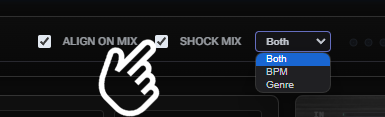
When Shock mix is enabled (checkbox next to Align on mix), auto mode can replace a long blend with a hard transition when the next track qualifies.
Trigger
| Setting | When shock mix runs |
|---|---|
| Both | Big BPM jump or incompatible genre (default) |
| BPM | BPM differs by more than ~8% only |
| Genre | Genre changes to something incompatible only |
Style
| Setting | What you hear |
|---|---|
| Auto | App picks spinback or echo out (BPM jumps lean spinback; genre-only leans echo) |
| Spinback | Real vinyl rewind when the track is decoded (else rate-dive + spinback SFX), then the new track drops in |
| Echo out | Delay trail on the outgoing track while the next track drops |
Works on automatic track changes and when you press Next Track. Requires genre tags for genre-based detection (run Analyze or set genres in the library).
When Shock mix is off (or the next track doesn't qualify for a shock): auto mixes use a slow overlap — longer fade, ease to center so both decks are audible, hold briefly, then finish. The app also tries to start the blend before a beatless outro (vocals-only / soft tail) so the groove doesn't collapse mid-mix.
Disabled while Mashup is Creative — the Shock mix controls grey out until Mashup is set back to Off.
How mixes land (Set Cue + waveform fades)
In auto mode there are no Manual Xfade / Next / Set Cue faders — fade timing is always waveform-driven.
Fade out (outgoing track)
The app reads the live track's waveform and starts the fade where energy drops in the tail — ideally before a beatless or near-silent outro. Deck time can count down to fade. An orange Fade marker shows the blend start on the live waveform.
Pressing Next Track starts the blend now (no phrase wait, no beat-bar stall). The next track is already soft-loaded on the idle deck at session start, so Deck B (or A) can take over as soon as you press Next.
Set Cue — where the new song starts
Set Cue lives in the session toolbar (next to Mashup). Choose how the app picks the mix-in point:
| Mode | Entry style |
|---|---|
| Auto Cue | Picks Intro, Drop, Drop Swap, or a classic energy fade per mix — good default |
| Intro | Outro → incoming intro (drums in the intro when detected) |
| Drop | Fade the live track at the second-to-last drop; bring the next track in at first drums in the build |
| Drop Swap | Fade at the second-to-last build on the live track; next track from build start; crossfader can hold in the middle until the drops meet |
| Beginning | Always mix in from 0:00 with a slower beat-matched fade |
Mix points align to the outgoing fade window and snap to Phrase / Bar when beat alignment is on (Next Track skips that wait). First song of the night always starts from the beginning.
On slow, smooth auto blends (Shock off), when both songs are bass-heavy the app can do a bass swap — handing off the Low band between decks during the overlap. That is not the same as Mashup → Creative, which needs separated stems.
On the waveform: FADE / END markers on the live deck; Mix on the incoming deck; coloured Intro / Breakdown / Build / Drop bands and labels under the bar ruler.
Deck waveforms
- Bar ruler — when BPM is known, the top strip shows bar numbers (not clock times). Tall ticks + numbers mark major bars; shorter white ticks fill the bars in between (and tiny beat ticks when zoomed in). Without BPM, the ruler falls back to time.
- Playhead — stays centered while you scrub or play (viewport follows the track). Near the end, the playhead walks toward the right edge so you can see the outro.
- Navigate — mouse wheel zooms; drag scrubs; Shift+drag pans; use Fit to show the whole track again.
The AI host (MC)
The MC is optional spoken announcements over the music — welcomes, track intros, occasional check-ins, goodbye.
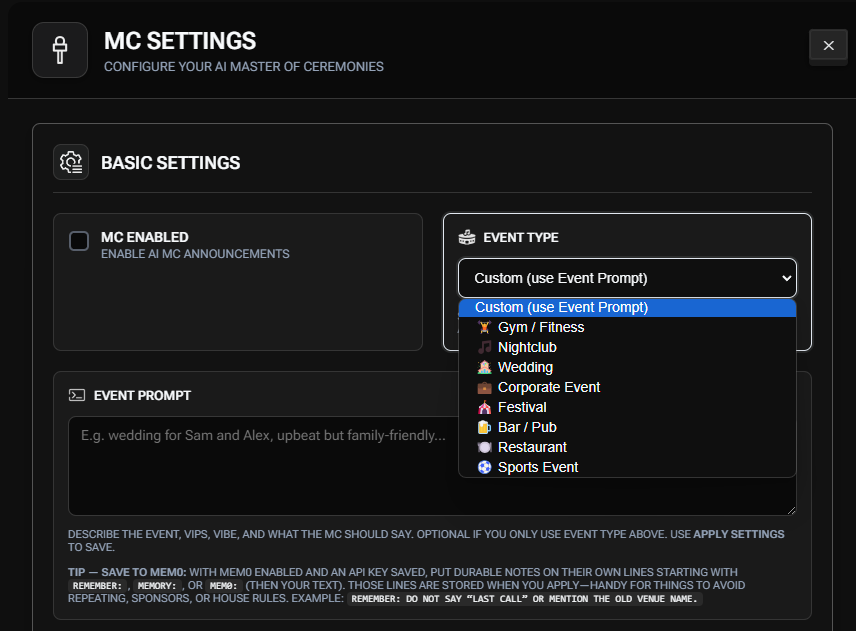
Turning it on
- Open MC Settings.
- Check MC Enabled.
- Fill in basics: Event type (wedding, club, gym, etc.) or Custom, Event Prompt, Venue name, and MC name (your DJ name).
- Click Apply Settings.
Live announce (custom line)
With MC enabled, click the MC head icon next to the session controls. A popup opens — type anything and press Announce (or Ctrl+Enter). The MC speaks exactly what you typed (up to 500 characters). Enable MC in settings first if the icon looks greyed out.
On DJ Phone (/dj/mc → MC tab): type in Announce and press Announce. AI line (auto) still generates a line for you. Neither changes your Event Prompt.
Writing a good Event Prompt
Saturday wedding for Sam and Alex. Family-friendly — kids and grandparents here.
Upbeat but not rowdy. Mention the venue Riverside Barn once early on.
Thank the caterer Green Plate if you do a welcome.
You don't need to write scripts. The AI turns this into short, varied lines.
Stopping phrases you don't like
Do not say "hands up"
Do not say "make some noise"
Do not say "last call"
For rules you want to remember every time you open the app, also add Remember: lines (requires Mem0 enabled with an API key — see MC Settings → Integrations):
Remember: Never mention the old venue name.
Remember: Do not say "feel the energy."
Voice setup
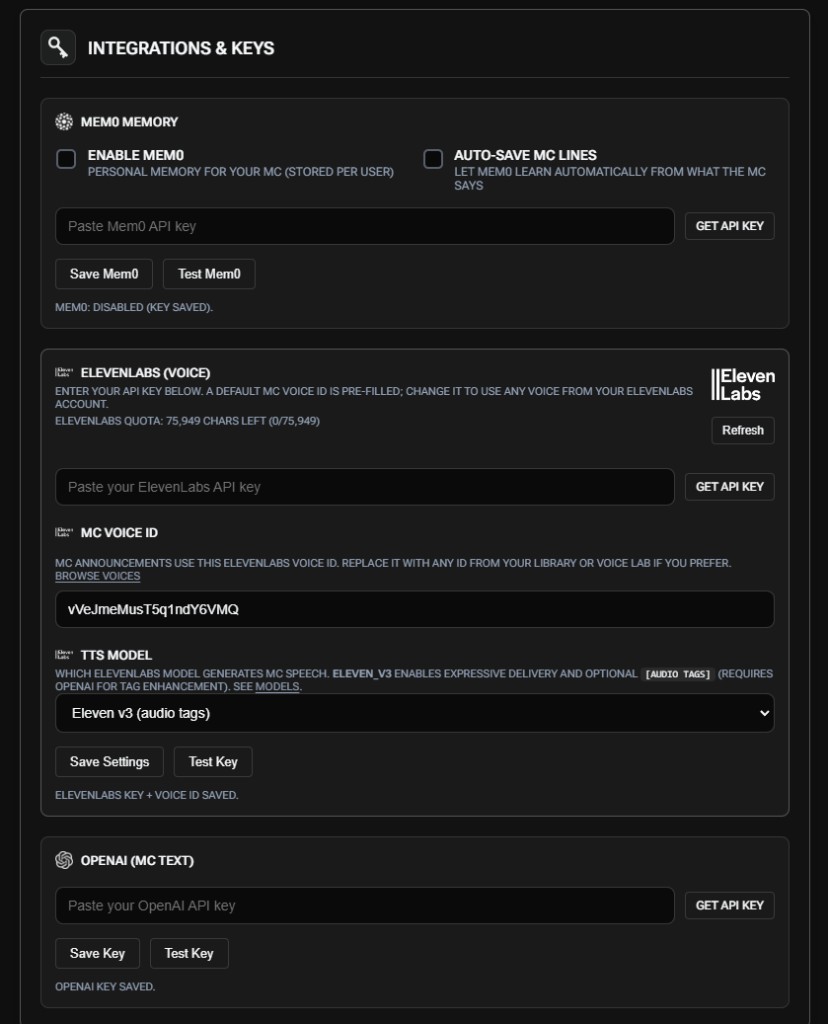
- ElevenLabs — add your API key in MC Settings → ElevenLabs (Voice) and pick a MC Voice ID, or use your own voice via Record your MC voice (see below).
- OpenAI — needed for smart, varied lines (not rigid templates).
- Without API keys, the app can still use simpler template lines or basic system speech.
Record your MC voice (your voice as the host)
In MC Settings → ElevenLabs, scroll to Record your MC voice. You can sound like you without copying a Voice ID from the ElevenLabs website.
- Save and test your ElevenLabs key.
- Tap Record → read the on-screen script for up to 30 seconds in a quiet room (or Upload a short MP3/WAV).
- Listen with Play, then check the consent box and tap Clone & use as MC voice.
- The MC Voice ID field fills in automatically — try Announce or start a set to hear it.
You need a saved ElevenLabs API key, a plan that includes Instant Voice Cloning, and the packaged AI DJ app (or dev booth:session — not the older Python-only dev UI). Optional Remove background noise helps room hum.
When the MC speaks
- Welcome when you start the session
- Track intros shortly after a new song begins (not every line names the track — you can set every N songs)
- Interval lines every N minutes if you set that up
- Goodbye when you end the session
- Music ducks (gets quieter) while the MC talks, then comes back up.
Deep dive into prompting, Mem0, ElevenLabs, and troubleshooting.
Full MC System guideCrowd song requests
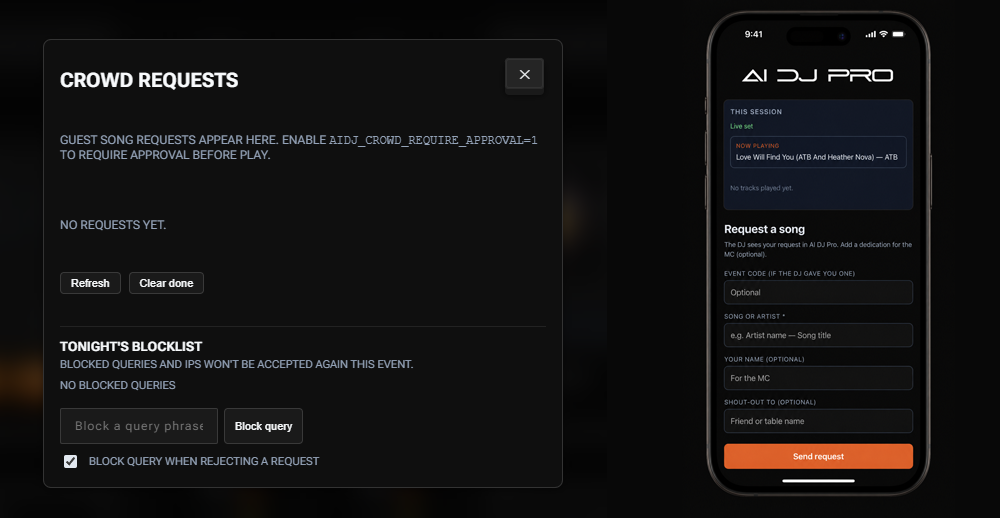
- Turn on the crowd server in settings (if not already on).
- Click QR in the top bar and show the code.
- Guests scan, search, and send requests.
- You can approve requests from the Queue button.
Requested songs get priority in the mix after anything you manually queued.
DJ Phone (booth remote)
Control the booth from your phone while the desktop app stays open and connected:
- In MC Settings, set a DJ Phone PIN (required — remote stays locked until you set one).
- On your phone (same Wi‑Fi), open http://YOUR-PC-LAN-IP:8767/dj/mc (dev Python crowd port) or 8867 on the packaged C++ session — same path /dj/mc.
- Enter the PIN.
Listen Live (packaged / C++ session): on the Transport tab (or Manual chrome Listen), stream the master mix over Wi‑Fi for monitoring (~100–250 ms typical). Allow audio if the browser asks. Not a substitute for wired cue headphones.
Auto tabs (Transport / Mix / Library / SFX / MC)
Start / Pause / Next, load playlists, trigger MC (including custom announce), and tweak mix options (energy, mashup, shock, cue mode, SFX). These need the booth in Auto mix. The desktop must stay connected to the WebSocket.
Start from the phone: the desktop marks the session active too — you can open the Library and load / queue tracks without seeing Session not ready.
Manual tab (phone DJ controller)
Open the Manual tab to switch the booth into Manual mix and use a landscape dual-deck controller: jog wheels, play/cue, pitch + SYNC, stem pads (V/D/B/O + Full mix), and crossfader. Rotate the phone to landscape. Stem pads match the booth: tap to isolate a stem, long-press for Alt/solo behavior; Full mix toggles separated stems.
Hide the browser address bar: on a normal http://LAN-IP page, phones block true fullscreen. The first time you open Manual, a center tip explains Add to Home Screen (Android Chrome / iPhone Safari). Dismiss with Got it (saved so it won't show again). Or tap Hide address bar, then open DJ Phone from the home icon (standalone — no URL bar).
Jog touch drives true scratch on the booth (same grain-scrub path as waveform scrub). Over Wi‑Fi there is a little latency — use a solid LAN for the best feel. Leaving the Manual tab (or ✕ Auto) switches the booth back to Auto.
Music Library
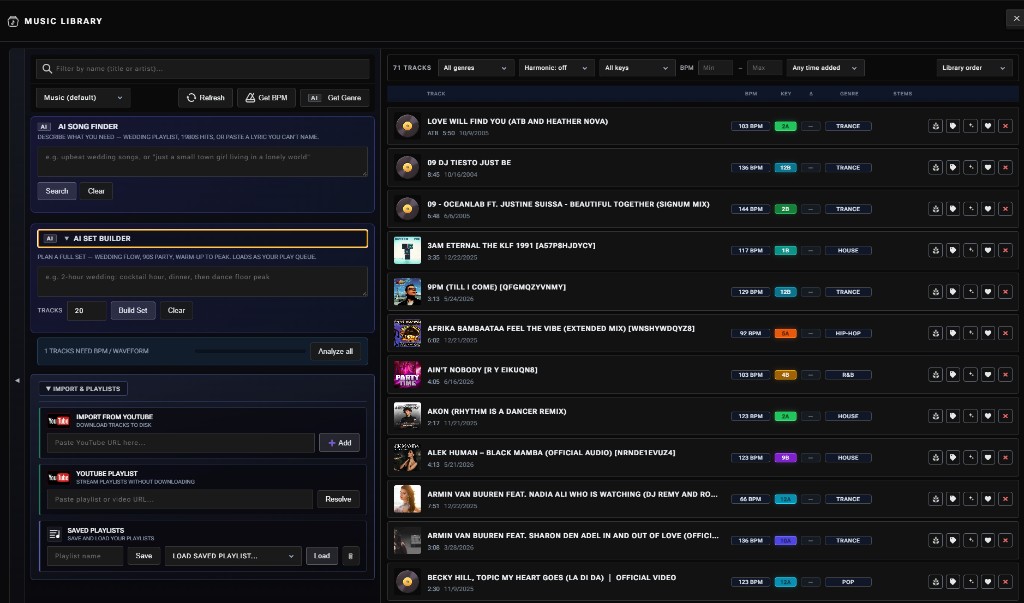
Open Library from the top bar. The panel slides up with two main areas:
| Area | What it is |
|---|---|
| Left column | Search, folders, AI tools, YouTube import, saved playlists (expand with the ▶ edge tab) |
| Right column | Your track list, filters, sorting, and per-track actions |
Use Half / Full to dock the library to half the screen (decks stay usable) or go full-screen. In half view you can drag a track onto Deck A or Deck B to load it (manual) or queue it as next (auto).
The left tools column starts collapsed on smaller layouts — click the ▶ tab on the left edge to show or hide it.
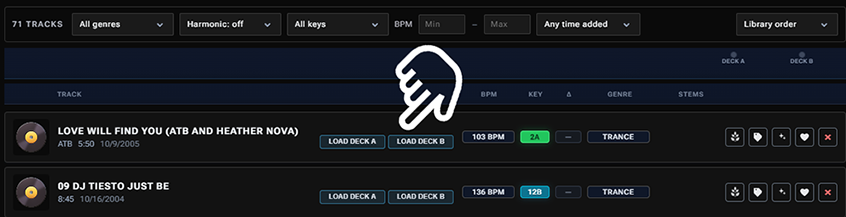
Library in auto mix vs manual mix
The track list changes layout and behavior depending on Auto / Manual on the crossfader panel.
Auto mix (default)
- A Deck A / Deck B status row at the top shows which deck is Playing and which is Next.
- Each track row can show Live - A/B or Next - A/B badges when that song is on a deck.
- Double-click a track: before Play — sets your opening song (highlighted row); press Play to begin. During a session — loads that track on the inactive deck (for an upcoming mix).
- Right-click a track (session must be started) — queues it as the very next song, ahead of automatic picks.
- Columns show BPM, Key (Camelot), Δ (key distance from live deck), and Genre.

Manual mix
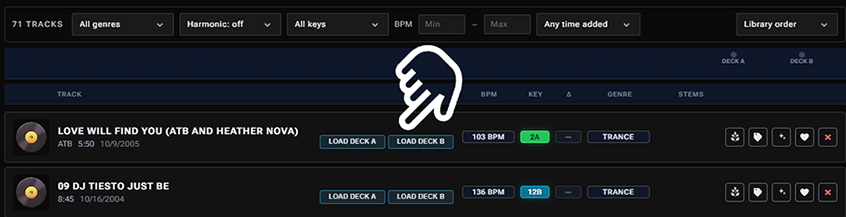
- Each row has Load Deck A and Load Deck B buttons instead of live/next badges.
- The header row shows Playing or Loaded per deck.
- Double-click and right-click queue are disabled — load tracks with the deck buttons, then blend with the crossfader.
- BPM, Key, and Genre still appear when known; the Δ column is hidden (you're choosing keys yourself).
Left panel — search and folder

- Filter by name — quick text search on title and artist.
- Music source folder — pick the default music folder or Browse to add another folder on your PC.
- Refresh — rescan the folder for new files.
- Get BPM — analyze tracks missing tempo and musical key.
- Get Genre — use AI to fill in genre for tracks with no genre (or useless labels like YouTube's Music).
- Analyze all — run full waveform/BPM/key analysis on the queue (progress bar appears when running).
AI Song Finder
Requires an OpenAI API key (see MC Settings → Integrations).
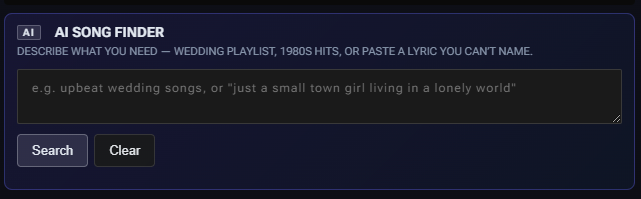
- Type a plain-English request — e.g. upbeat wedding songs, or paste a lyric you can't name.
- Click Search.
- Results list matches from your library plus suggested YouTube searches.
- From a result you can queue, set as starting track, or kick off a YouTube import for suggestions not yet in your library.
- Load more (10) fetches additional AI suggestions.
Good for "I know the vibe but not the song title" moments.
AI Set Builder
Also requires OpenAI. Expand AI Set Builder in the left column.
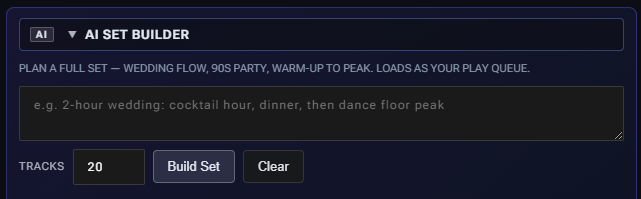
- Describe the whole night — e.g. 2-hour wedding: cocktail hour, dinner, then dance floor peak.
- Set Tracks (6–40, default 20).
- Click Build Set. The AI plans an ordered list with phases (warm-up, peak, etc.).
- Review the results. Tracks already in your library are marked; YouTube suggestions may need import or streaming.
- Stream set — loads the set as the live play queue (library matches + YouTube stream fallback) and preloads BPM/key/genre where needed.
- Download set — pick a folder; the app writes matched/downloaded audio there plus an .m3u playlist.
- Click Clear before building a new set.
YouTube — download vs stream
Under Import & playlists (expand that section in the left column):
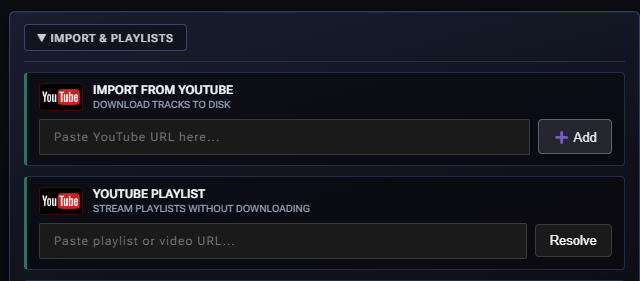
Import from YouTube (single track)
- Paste one video URL → Add.
- The app downloads the audio into your music folder as a normal local file.
- Best when you want offline playback, stems, or permanent library entries.
YouTube Playlist (stream mode)
- Paste a playlist or video URL → Resolve to preview tracks.
- Load as queue — replaces the current queue with streamed tracks (no download).
- Add to queue — appends to what you already have.
- Download — pick a folder; the app downloads the playlist audio there (same pipeline as AI Set download).
- Streams play from cache on your PC; first play of each track often takes 15–30 seconds.
- Stems are not available for streamed YouTube tracks — the library Stems column shows N/A. Use single-track import (or playlist Download) for local files if you want stems.
Loading a new playlist cancels in-flight analysis/preload from the previous list so the UI doesn't stay stuck busy.
Saved Playlists

- Name your current queue → Save (including save filtered by genre when a genre filter is active).
- Add to playlist on a row appends that track into a named saved playlist.
- Load a saved playlist later (local paths and YouTube stream entries are restored when still valid).
Queue and how playback works
Think of the library list as your play queue:
- Load as queue (playlist, AI set, saved playlist) replaces the list — that order is what auto mix walks through.
- Add to queue appends without clearing what's already there.
- Right-click → queue next (auto mode, session running) inserts one track at the front — it plays after the current song, before other queued items. In half-screen library you can also drag a track onto a deck to queue/load.
- Crowd requests (if enabled) can also jump the line after your manual queue.
- × on a row removes that track from the playlist (not from your disk).
- Drag rows to reorder visually (playlist order).
When you replace the library during a live session, the current song keeps playing until it ends or you pick something new — the app won't hijack the mix mid-song.
Starting track: In auto mode, double-click your opener before Play, or the app picks from the queue automatically.
How auto picks the next song: smart selection ranks genre first, then BPM and Camelot key. After about four tracks in a row from the same genre, the picker prefers a genre switch so the set doesn't get stuck in one pocket.
Sorting and filters (right column)
Above the track list:

| Control | Purpose |
|---|---|
| All genres | Show only one genre tag |
| Harmonic | Hide tracks that don't mix well with the live deck or next up track (Camelot rules) |
| All keys | Filter to one Camelot key (or unknown key) |
| BPM min – max | Tempo range |
| Added | Tracks added in the last 24h / 7d / 30d |
| Sort | See below |
| Sort | Order |
|---|---|
| Library order | Queue order as loaded (default) |
| Camelot: 1A → 12B | Around the Camelot wheel, ascending |
| Camelot: 12B → 1A | Around the wheel, descending |
| Added: newest / oldest | By when the track entered the library |
Camelot key and the Δ column
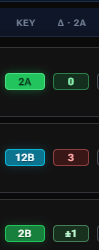
Key badges use the Camelot wheel (e.g. 8A, 11B) — a DJ-friendly map of musical keys. Run Get BPM to detect keys for local files; streamed tracks get key during preload.
| Mode | Compares against |
|---|---|
| Live deck | The key of the track currently playing |
| Next up | The key of the incoming / next track |
Harmonic filter (when not off): only harmonically compatible keys stay visible (same key, adjacent numbers, or same number different letter).
Δ (key difference) — steps around the Camelot wheel from the live deck's key:
| Δ badge | Meaning |
|---|---|
| 0 | Same key as live — safest blend |
| ±1 | One step away — usually great |
| 2–3 | Further but still often mixable (green-ish) |
| Higher / red | Likely key clash — use with care |
| — | No live deck key yet |
| ? | Track key unknown — run Get BPM |
The column header shows the live reference key when available (e.g. Δ · 8A).
Per-track actions (right side of each row)
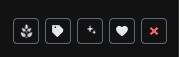
| Action | What it does |
|---|---|
| Wave | Mini spectral waveform thumb (bass / mids / highs) once analysis is ready |
| Stems | Start stem separation (local files only; YouTube streams show N/A) |
| Set genre | Type a genre manually |
| Detect genre (AI) | Overwrite genre with AI |
| Dedicate | MC can mention this track once |
| × | Remove from playlist |
Library tips
- Use Half layout when you want to keep an eye on the decks while browsing.
- If the library shows loading forever after a big playlist, reconnect — cached stream tracks should still appear.
- YouTube streams need network; local files work offline.
- Switch to manual mix for full hands-on control — use Load Deck A/B on each row (or drag onto a deck in half view).
- Album art shows when available; stem status for YouTube streams is N/A.
Stem separation (V / D / B / O)
Stem separation splits a local track into four parts so you can mix like a pro DJ with isolated vocals, drums, bass, and everything else.

| Pad | Part |
|---|---|
| V | Vocals |
| D | Drums |
| B | Bass |
| O | Other (synths, instruments, etc.) |
What you need
- A local file on your computer (MP3, WAV, FLAC, etc.). YouTube streams are not supported for stems.
- The installed app on Windows or Mac (stems are bundled in the full installer). Dev setups need extra setup — see the technical guide.
- A GPU (NVIDIA CUDA on Windows/Linux, or Apple Silicon on Mac) speeds separation a lot when available; otherwise it runs on CPU.
How to use stems

- Open Library and find a local track (streams show N/A in the Stems column).
- Click Separate stems on that row — or load/play the track: the app can auto-queue separation for local files in the background.
- Watch the status under the deck pads: Preparing… → Running… → Stems ready.
- On the deck, click Full mix to switch to Stems mode with all stems on (short crossfade — no hard cut). Or click a single stem pad to enter stems with only that stem audible.
- Click stem pads (vocals / drums / bass / other icons) to mute/unmute. Alt+click a pad to solo that part only. Same controls are under MIDI Mapping → Stems.
Click Full mix again to return to the normal stereo track. Waveforms and BPM analysis always use the full song — only playback switches to stems.
Stem mode may sound a touch different from the original file (Demucs separation artifacts). The app applies a small makeup gain so stem mode loudness is closer to full mix.
Creative Mashup (auto mixes)
With Mashup → Creative (session bar), auto transitions can choreograph stem levels across both decks during the blend — for example keeping outgoing vocals over the incoming beat. See Mashup (Creative) above. Both decks need stems ready.
MC + stems
When a deck is playing in Stems mode and the MC speaks, the app ducks vocals only on that deck instead of turning down the whole mix. Handy for keeping the beat while the host talks.
Good to know
- First separation on a track can take several minutes (CPU-heavy). Later loads are instant — results are cached on your machine.
- The first time ever you use stems, the app may download AI model files (~80 MB). You need an internet connection for that one-time download.
- Only one track separates at a time. Queue another and it waits its turn.
- Stems work in auto and manual mix. Pause stops stem playback along with the deck.
- After app start, wait until decks show Stems ready before relying on Creative Mashup (stem cache syncs in the background).
- When you grab a sample from a deck that is in Stems mode, only the audible parts (solo or unmuted V/D/B/O) are saved into the sampler pad.
Stem troubleshooting
| Problem | What to try |
|---|---|
| Stems off / unavailable | Use a local file, not YouTube. Reinstall or update the app so the stem worker is included. |
| Failed on separation | Try another format (MP3/WAV), free disk space, and check the in-app log. |
| Very slow | Normal on CPU-only PCs. Start separation before you need the track live. |
| Stems silent after switch | Wait for Stems ready, then toggle Full mix → Stems again. |
| Creative mashup skipped | Log explains why (stems not ready / not local). Separate stems on both decks, then mix again. |
| Quieter / thinner than full mix | Expected from Demucs; makeup gain helps level — quality won't match the original 1:1. |
Architecture, Demucs worker, dev/build steps, and advanced troubleshooting.
Stem separation — technical guideSound FX and Sampler
In the center column (under the crossfader / session controls) you'll find Sound FX and Sampler.
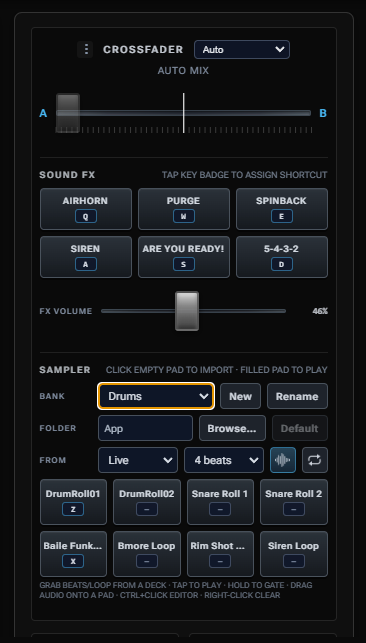
Sound FX
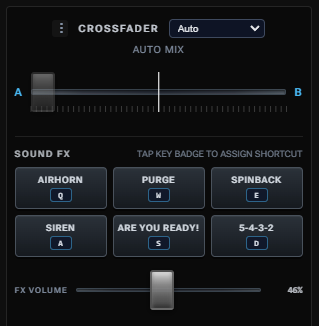
Built-in one-shots (airhorn, sirens, spinback, etc.) with their own FX volume slider.
- Click a pad to fire it; several FX can overlap.
- Assign keyboard shortcuts by clicking the key label on a pad, then pressing a key.
- FX volume does not change sampler pads — the two buses are independent.
Sampler — banks and pads
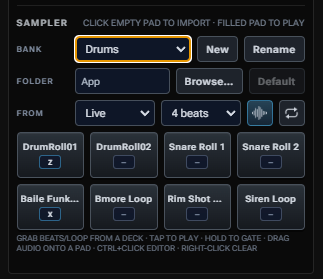
Custom samples live in banks of 8 pads.
| Control | What it does |
|---|---|
| Bank | Switch banks |
| New / Rename | Create or rename the active bank |
| Folder | Where WAV files are stored — Browse… to pick a folder, Default for the app folder, click the path to open it in Explorer |
| Empty pad | Click to import audio, or drag & drop files onto a pad |
| Filled pad | Tap to play using Single/Loop · Hold to gate (keeps playing while pressed, even in Single) |
| Right-click | Open / close the pad editor |
| Ctrl+click (Cmd on Mac) | Clear the pad (deletes the WAV if no other pad still uses it) |
| Shift+click | Rename the pad |
Playback tips
- Multiple pads can play at the same time (polyphonic).
- Active pads light up in different colors while sounding.
- Shortcuts on pad keys work the same as tap/hold with the mouse.
- Map pads / bank change / grab / stop-all under MIDI Mapping → Sampler (hold pads use note on/off like Cue).
Pad editor
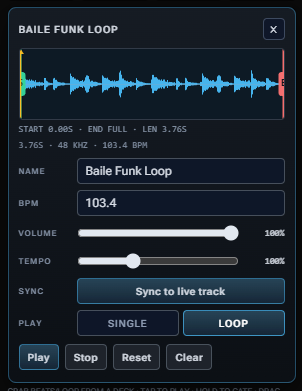
Right-click a filled pad to edit it:
- Waveform with green start / red end trim handles
- Name, BPM, Volume, Tempo
- Sync to live track — match tempo to the current deck BPM (keeps Loop mode working)
- Single / Loop
- Play / Stop / Reset / Clear
Volume and tempo update live while a pad is playing.
Grab from a live deck
Above the pads:
| Control | What it does |
|---|---|
| From | Live / Deck A / Deck B |
| Beat count | 1 / 2 / 4 / 8 / 16 beats ending at the playhead |
| Waveform icon | Grab beats — last N beats into an empty pad (or the open editor pad) |
| Loop icon | Grab loop — deck Loop In → Loop Out region (markers required) |
Captured chops are saved as real WAV files in your sample folder, tagged with track BPM when known.
Where sampler files live
- Default: %APPDATA%\AI DJ\sampler\files\ (banks in banks.json next to it)
- Or any folder you choose with Browse… (preference saved in settings.json)
Buses, pad model, stem-aware capture, Electron IPC, and backup bundles.
Sound FX, sampler, and backup — technical guideBackup & Restore
Top bar → Backup.
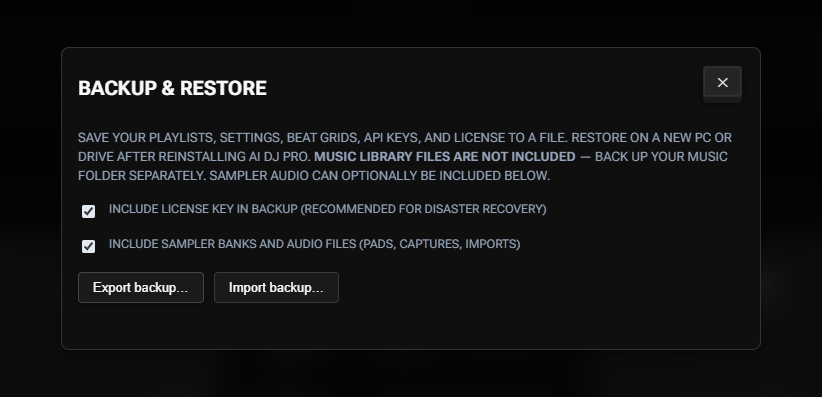
Export a file with playlists, settings, beat grids, API-related prefs, and (optionally) your license key.
| Option | Meaning |
|---|---|
| Include license key | Recommended for disaster recovery |
| Include sampler banks and audio files | Packs pads + WAV samples into the same backup (can make the file large) |
Restore: Import the file, remap the music folder if you moved your library, then confirm. Sampler audio is restored into your current sample folder (not the path from the old PC).
AI extras (optional)
If you add an OpenAI API key (MC Settings → Integrations):
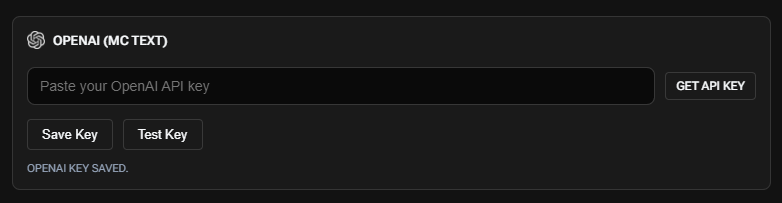
- AI Song Finder — search the library by vibe or lyric (see Music Library → AI Song Finder).
- AI Set Builder — plan a full set in one prompt and Stream or Download it (see Music Library → AI Set Builder).
Core DJing works without these — they're helpers inside the Library panel.
Common questions
| Question | Answer |
|---|---|
| Music stopped connecting / WebSocket error | Make sure the DJ server is running. In the packaged app it starts automatically; in dev mode you may need to start it manually. Check Health in the top bar. |
| Pause then resume skipped to the next song | Update to the latest version and restart the server — pause should hold your place on the current track. |
| MC is silent | Check ElevenLabs key and quota, or test with MC Test in settings. Music volume ducking should still dip even if voice fails. |
| Mixes feel too busy | Raise Phrase to 48 or 64, or turn Shock mix off so every change uses the slower overlap blend. |
| Mixes feel sluggish | Lower Phrase to 16 or 24, or enable Shock mix for big BPM/genre jumps. |
| I want full control | Switch to Manual mix, load Deck A/B from the library, press Play, then blend with the crossfader. |
| I started from my phone but Library says Session not ready | Update to the latest build and keep the desktop connected — phone Start now syncs the booth. Or press Play once on the desktop. |
| Next Track feels stuck / Deck B silent | When the set starts, both decks should soft-load. Next skips beat-wait and clears any leftover fade curve so the idle deck can start immediately. Fully restart Electron if you still see setValueAtTime overlaps setValueCurveAtTime in the log. |
| End Session restarted the first track | End should stop cleanly without auto-playing again. Press Play only when you want a new set. Hard-refresh Electron if an old build is still auto-arming after End. |
| Stems won't start / says Stems off | Stems need a local file and the full Windows or Mac installer. YouTube links won't work. Use Separate stems in the library and wait until the deck shows Stems ready. GPU (when available) makes first separation much faster. |
| Sampler grab is silent / wrong part | In Stems mode, grab captures only audible stems. Unmute or solo the part you want, or switch back to Full mix to capture the whole track. |
| Where did my samples go after a new PC? | Use Backup with Include sampler… checked before migrating, or copy your sample folder and point Folder → Browse… at it. |
Suggested setups
House party (hands-off)
Auto mix, Set arc Auto, Mashup Off (or Creative if both decks have stems), Phrase 32, MC on with a short Event Prompt, crowd QR optional.
Wedding cocktail → dancing
Start Set arc Warm up, MC with family-friendly Event Prompt and banned phrases. Switch to Peak when dancing starts; Cool down for last hour.
Club-style manual set
Manual mix, load Deck A/B from library, press Play, blend with crossfader (center = both decks full).
Use hot cues (C1–C8; Shift+click clears), Quantize (Q), and deck effects for drops and transitions. MC intro when you hit play.
Instrumental / acapella moments
Separate stems on local tracks, switch a deck to Stems, solo O (instrumental) or V (vocals) for breakdowns or MC talk-overs.
Or set Mashup → Creative with stems ready on both decks for automatic vocal-ride / bass-swap style blends.
Where to get more help
- Help button in the app → https://aidjpro.app/guide/
- In-app log panel for status messages
Full system documentation — architecture, deck effects, configuration, WebSocket messages, and advanced troubleshooting.
Complete Technical GuideStill need help?
Contact our support team for licensing, setup, or technical questions.